Introduction
term-transcript is a Rust library and a CLI app that allow to:
- Create transcripts of interacting with a terminal, capturing both the output text and ANSI-compatible color info.
- Save these transcripts in the SVG format, so that they can be easily embedded as images into HTML / Markdown documents. Rendering logic can be customized via Handlebars template engine; thus, other output formats besides SVG (e.g., HTML) are possible.
- Parse transcripts from SVG.
- Test that a parsed transcript actually corresponds to the terminal output (either as text or text + colors).
The primary use case is easy to create and maintain end-to-end tests for CLI / REPL apps. Such tests can be embedded into a readme file.
Usage
term-transcript comes in two flavors: a Rust library, and a CLI app.
The CLI app has slightly less functionality, but does not require Rust knowledge.
See their docs and the FAQ for usage guidelines and troubleshooting advice.
Examples
An SVG snapshot of the test rainbow script
produced by this crate:

A snapshot of the same example with the scrolling animation and window frame:

See the CLI examples for more snapshot examples.
Limitations
- Terminal coloring only works with ANSI escape codes. (Since ANSI escape codes are supported even on Windows nowadays, this shouldn’t be a significant problem.)
- ANSI escape sequences other than SGR ones are either dropped (in case of CSI sequences), or lead to an error.
- By default, the crate exposes APIs to perform capture via OS pipes.
Since the terminal is not emulated in this case, programs dependent on
isattychecks or getting term size can produce different output than if launched in an actual shell (no coloring, no line wrapping etc.). - It is possible to capture output from a pseudo-terminal (PTY) using the
portable-ptycrate feature. However, since most escape sequences are dropped, this is still not a good option to capture complex outputs (e.g., ones moving cursor). - PTY support for Windows is shaky. It requires a somewhat recent Windows version (Windows 10 from October 2018 or newer), and may work incorrectly even for the recent versions.
Using Library
Add this to your Crate.toml:
[dependencies]
term-transcript = "0.5.0"
See the library docs for detailed description of its API.
Basic workflow
The code snippet below executes a single echo command in the default shell
(sh for *NIX, cmd for Windows), and captures the rendered transcript to stdout.
#![allow(unused)]
fn main() {
use term_transcript::{svg::Template, ShellOptions, Transcript, UserInput};
use std::str;

let transcript = Transcript::from_inputs(
    &mut ShellOptions::default(),
    vec![UserInput::command(r#"echo "Hello world!""#)],
)?;
let mut writer = vec![];
// ^ Any `std::io::Write` implementation will do, such as a `File`.
Template::default().render(&transcript, &mut writer)?;
println!("{}", str::from_utf8(&writer)?);
anyhow::Ok(())
}
Use in CLI tests
CLI tests are effectively slightly more sophisticated snapshot tests. Such tests usually adhere to the following workflow.
Tip
The snippets below are taken from end-to-end tests for
term-transcriptCLI.
Define path to snapshots
For example, snapshots may be located in the examples directory of the crate,
or in a tests subdirectory.
fn svg_snapshot(name: &str) -> PathBuf {
    let mut snapshot_path = Path::new("tests/snapshots").join(name);
    snapshot_path.set_extension("svg");
    snapshot_path
}
Configure shell
This configures the used shell (e.g., sh or bash), the working directory, PATH additions etc.
Usually can be shared among all tests.
// Executes commands in a temporary dir, with paths to the `term-transcript` binary and
// the `rainbow` script added to PATH.
fn test_config() -> (TestConfig<ShellOptions<StdShell>>, TempDir) {
    let temp_dir = tempdir().expect("cannot create temporary directory");
    let rainbow_dir = Path::new(env!("CARGO_MANIFEST_DIR")).join("../../e2e-tests/rainbow/bin");

    let shell_options = ShellOptions::sh()
        .with_env("COLOR", "always")
        // Switch off logging if `RUST_LOG` is set in the surrounding env
        .with_env("RUST_LOG", "off")
        .with_current_dir(temp_dir.path())
        .with_cargo_path_for("term-transcript")
        .with_additional_path(rainbow_dir)
        .with_io_timeout(Duration::from_secs(2));
    let config = TestConfig::new(shell_options).with_match_kind(MatchKind::Precise);
    (config, temp_dir)
}
Configure template(s)
Zero or more template options determining how the captured snapshots are displayed, e.g., scrolling options, window frame, line numbering etc.
fn scrolled_template() -> Template {
    let template_options = TemplateOptions {
        window: Some(WindowOptions::default()),
        scroll: Some(ScrollOptions::default()),
        ..TemplateOptions::default()
    };
    Template::new(template_options.validated().unwrap())
}
Define tests
Finally, use the definitions above for tests. Each test will provide inputs supplied to the shell, and will compare the captured output to one recorded in the snapshot.
#[test]
fn print_example() {
    let (mut config, _dir) = test_config();
    config.test(
        svg_snapshot("print"),
        [
            "term-transcript exec -I 300ms -T 100ms 'rainbow --short' > short.svg",
            "term-transcript print short.svg",
        ],
    );
}
term-transcript CLI
term-transcript CLI app provides an almost feature-complete alternative to the library.
It allows capturing, printing and testing terminal snapshots.
Usage
- The
execsubcommand executes one or more commands in the shell, captures their outputs, renders to an SVG image and outputs it to stdout. - The
capturesubcommand captures output from stdin, renders it to SVG and outputs SVG to stdout. - The
testsubcommand allows testing snapshots from the command line. - The
printsubcommand parses an SVG snapshot and outputs it to the command line.
Launch the CLI app with the --help option for more details about arguments
for each subcommand. See also the FAQ for some tips and troubleshooting advice.
exec subcommand
term-transcript exec sends one or more inputs to the customizable shell (e.g., sh)
and captures the produced outputs, including ANSI styling, into a snapshot.
The snapshot uses the SVG format by default, however, this can be customized
(see the Custom Template section for details).
Tip
See Examples for various representation options that can be customized via command-line arguments.
capture subcommand
term-transcript capture is quite similar to term-transcript exec, but instead of instantiating
a shell, it captures input from another command via shell pipelining.

print subcommand
term-transcript print parses a previously captured transcript and outputs it to stdout,
applying the corresponding styles as necessary.

test subcommand
term-transcript test reproduces inputs recorded in a captured transcript and compares outputs
to the ones recorded in the transcript.

If there’s a test failure a diff will be produced highlighting the changes.
This includes discrepancies in ANSI styling if the --precise arg is provided, like in the snapshot below.

Tip
See also using the library for CLI testing. This provides a more customizable alternative (e.g., allows to generate snapshots the first time the tests are run).
Installation options
- Use a pre-built binary for popular targets (x86_64 for Linux / macOS / Windows
and AArch64 for macOS) from the
masterbranch. - Use a pre-built binary for popular targets from GitHub Releases.
- Use the app Docker image.
- Build from sources using Rust /
cargo.
Downloads
Important
The binaries are updated on each push to the git repo branch. Hence, they may contain more bugs than the release binaries mentioned above.
| Platform | Architecture | Download link |
|---|---|---|
| Linux | x86_64, GNU | Download |
| macOS | x86_64 | Download |
| macOS | arm64 | Download |
| Windows | x86_64 | Download |
Building from Sources
To build the CLI app from sources, run:
cargo install --locked term-transcript-cli
# Optionally, specify the release `--version`, or `--git` +
# `--tag` / `--branch` / `--rev`  to build from the git repo.

# This will install `term-transcript` executable, which can be checked
# as follows:
term-transcript --help
This requires a Rust toolchain locally installed.
Minimum supported Rust version
The crate supports the latest stable Rust version. It may support previous stable Rust versions, but this is not guaranteed.
Crate feature: portable-pty
Specify --features portable-pty in the installation command
to enable the pseudo-terminal (PTY) support (note that PTY capturing still needs
to be explicitly switched on when running term-transcript commands).
Without this feature, console app output is captured via OS pipes,
which means that programs dependent on isatty checks
or getting term size can produce different output than if launched in an actual shell
(no coloring, no line wrapping etc.).
Crate feature: tracing
Specify --features tracing in the installation command to enable tracing
of the main performed operations. This could be useful for debugging purposes.
Tracing is performed with the term_transcript::* targets, mostly on the DEBUG level.
Tracing events are output to the stderr using the standard subscriber;
its filtering can be configured using the RUST_LOG env variable
(e.g., RUST_LOG=term_transcript=debug).
Docker Image
As a lower-cost alternative to the local installation, you may install and use the CLI app from the GitHub Container registry. To run the app in a Docker container, use a command like
docker run -i --rm --env COLOR=always \
  ghcr.io/slowli/term-transcript:master \
  print - < examples/rainbow.svg
Here, the COLOR env variable sets the coloring preference for the output,
and the - arg for the print subcommand instructs reading from stdin.
Running exec and test subcommands from a Docker container is more tricky
since normally this would require taking the entire environment for the executed commands
into the container. In order to avoid this, you can establish a bidirectional channel
with the host using nc, which is pre-installed
in the Docker image:
docker run --rm -v /tmp/shell.sock:/tmp/shell.sock \
  ghcr.io/slowli/term-transcript:master \
  exec --shell nc --echoing --args=-U --args=/tmp/shell.sock 'ls -al'
Here, the complete shell command connects nc to the Unix domain socket
at /tmp/shell.sock, which is mounted to the container using the -v option.
On the host side, connecting the bash shell to the socket could look like this:
mkfifo /tmp/shell.fifo
cat /tmp/shell.fifo | bash -i 2>&1 | nc -lU /tmp/shell.sock > /tmp/shell.fifo &
Here, /tmp/shell.fifo is a FIFO pipe used to exchange data between nc and bash.
The drawback of this approach is that the shell executable
would not run in a (pseudo-)terminal and thus could look differently (no coloring etc.).
To connect a shell in a pseudo-terminal, you can use socat,
changing the host command as follows:
socat UNIX-LISTEN:/tmp/shell.sock,fork EXEC:"bash -i",pty,setsid,ctty,stderr &
TCP sockets can be used instead of Unix sockets, but are not recommended
if Unix sockets are available since they are less secure. Indeed, care should be taken
that the host “server” is not bound to a publicly accessible IP address, which
would create a remote execution backdoor to the host system. As usual, caveats apply;
e.g., one can spawn the shell in another Docker container connecting it and the term-transcript
container in a single Docker network. In this case, TCP sockets are secure and arguably
easier to use given Docker built-in DNS resolution machinery.
Examples
This section showcases various term-transcript options. It uses the CLI app
as more approachable, but all showcased features work in the Rust library as well.
Command-line args
| Section | Covered command-line args |
|---|---|
| Basics | --palette, --pure-svg, --pty, --scroll, --line-height, --advance-width |
| Window Appearance | --width, --hard-wrap, --scroll-interval, --scroll-len, --window |
| Line Numbering | --line-numbers, --continued-mark, --hard-wrap-mark |
| Custom Fonts | --font, --embed-font |
| Input Control | --no-inputs |
| Custom Config | --tpl, --config-path |
rainbow script
Most examples use rainbow – a shell script showcasing various ANSI styles.
rainbow shell script (click to expand)
#!/usr/bin/env sh

# Standalone shell script to output various text styles

BASE_COLORS="black red green yellow blue magenta cyan white"
RGB_COLOR_NAMES="pink orange brown teal"
RGB_COLOR_VALUES="255;187;221 255;170;68 159;64;16 16;136;159"

RESET='\033[0m'
BOLD='\033[1m'
DIMMED='\033[2m'
ITALIC='\033[3m'
UNDERLINE='\033[4m'
BLINK='\033[5m'
INVERTED='\033[7m'
CONCEALED='\033[8m'
STRIKE='\033[9m'
GREEN_FG='\033[32m'
YELLOW_FG='\033[33m'
MAGENTA_BG='\033[45m'
CYAN_BG='\033[46m'

index() {
  shift "$1"
  echo "$2"
}

base_styles_line() {
  base_style="$1"
  name="$2"

  line="$name: ${base_style}Regular$RESET"
  line="$line ${base_style}$BOLD${GREEN_FG}Bold$RESET"
  line="$line ${base_style}$ITALIC$YELLOW_FG${MAGENTA_BG}Italic$RESET"
  line="$line ${base_style}$BOLD$CYAN_BG${ITALIC}Bold+Italic$RESET"
  line="$line ${base_style}${STRIKE}Strike$RESET"
  echo "$line"
}

base_colors_line() {
  start_code="$1"
  underline_oddity="$2"

  line=""
  for i in $(seq 0 7); do
    color=$((i + start_code))
    decor=""
    if [ $((i % 2)) -eq "$underline_oddity" ]; then
      decor="$UNDERLINE"
    fi
    line=$line'\033['$color'm'$decor$(index "$i" $BASE_COLORS)$RESET' '
    if [ "$3" = "1" ]; then
      line=$line'\033['$color'm'$UNDERLINE$ITALIC$(index "$i" $BASE_COLORS)"/italic"$RESET' '
    fi
  done
  echo "$line"
}

ansi_colors_line() {
  line=""

  for i in $(seq 16 231); do
    fg_color="\033[37m" # white
    col=$(((i - 16) % 36))
    if [ "$col" -gt 18 ]; then
      fg_color="\033[30m" # black
    fi
    line=$line'\033[38;5;'$i'm!\033[0m'$fg_color'\033[48;5;'$i'm?\033[0m'

    if [ "$1" != "1" ] && [ "$col" -eq 35 ]; then
      echo "$line"
      line=""
    fi
  done
  if [ "$1" = "1" ]; then
    echo "$line"
  fi
}

ansi_grayscale_line() {
  line=""
  for i in $(seq 232 255); do
    fg_color="\033[37m" # white
    if [ "$i" -ge 244 ]; then
      fg_color="\033[30m" # black
    fi
    line=$line'\033[38;5;'$i'm!\033[0m'$fg_color'\033[48;5;'$i'm?\033[0m'
  done
  echo "$line"
}

rgb_colors_line() {
  line=""
  for i in $(seq 0 3); do
    name=$(index "$i" $RGB_COLOR_NAMES)
    value=$(index "$i" $RGB_COLOR_VALUES)
    line=$line'\033[38;2;'$value'm'$name'\033[0m '
  done
  echo "$line"
}

if [ "$1" = "--short" ]; then
  echo "Base styles:"
  base_styles_line ''             "     None"
  base_styles_line "$DIMMED"      "   Dimmed"
  base_styles_line "$UNDERLINE"   "Underline"
  base_styles_line "$BLINK"       "    Blink"
  base_styles_line "$CONCEALED"   "Concealed"
  base_styles_line "$INVERTED"    " Inverted"
  base_styles_line '\033[30m\033[47m' "  With bg"

  echo "Partial switches (<ESC>[2x):"
  printf ' \033[1m''bold \033[3m''italic\033[22m \033[4m''underline\033[23m\033[5m\033[32m blink \033[7m\033[24m'
  printf 'reversed \033[25m\033[8m\033[9m''concealed\033[27m\033[28m\n'
  printf ' \033[45m''strikethrough\033[29m\033[39m\033[49m regular\033[0m\n'
fi

long_lines=""
if [ "$1" = "--long-lines" ]; then
  long_lines=1
fi

echo "Base colors:"
base_colors_line 30 0 "$long_lines"
base_colors_line 90 1 "$long_lines"
echo "Base colors (bg):"
base_colors_line 40 2
base_colors_line 100 2

if [ "$1" = "--short" ]; then
  exit 0
fi

echo "ANSI color palette:"
ansi_colors_line $long_lines
echo "ANSI grayscale palette:"
ansi_grayscale_line

echo "24-bit colors:"
rgb_colors_line
Basic Usage
Static snapshot
Generating command:
term-transcript exec --palette gjm8 rainbow
Here, --palette defines the color palette to use for the 16 base ANSI colors.
Note
rainbowis an executable script for end-to-end tests.
Static snapshot (pure SVG)
--pure-svg flag makes term-transcript to produce pure SVG instead of default HTML-in-SVG.
This is more compatible (HTML-in-SVG is not supported by all SVG browsers), but has its quirks.
In particular, font advance width is set to an imprecise hard-coded value
unless a font is embedded into the snapshot; this may lead
to various display artifacts, such as stretched or compressed text, interrupted underlines, etc.
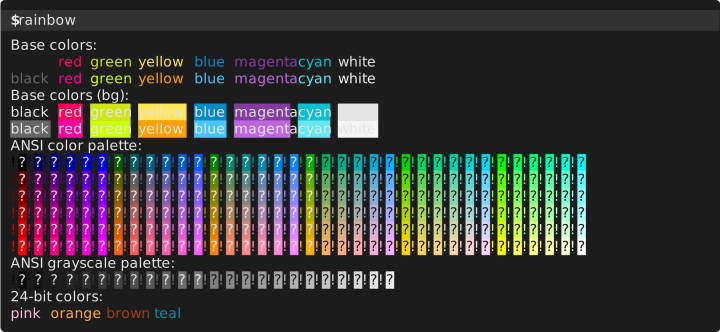
Generating command:
term-transcript exec --pure-svg --palette gjm8 rainbow
Animated snapshot
Generating command:
term-transcript exec --palette powershell --line-height=18px \
   --scroll --pty --window='rainbow, rainbow --long-lines' \
   rainbow 'rainbow --long-lines'
Note
The
--ptyflag creates a pseudo-terminal for capture instead of default pipes.
Tip
Scroll animation is highly customizable! See Window Appearance section for details.
Line height
In the example above, --line-height explicitly sets the line height for the snapshot.
It can be specified both in pixels or in ems (i.e., relative to the font size which is hard-coded to 14px).
By default, line height is set to 1.2em = 16.8px, unless a font is embedded,
in which case the optimal line height is obtained from the font metrics.
Advance width
--advance-width sets the advance width (aka char width) of a font. Similarly to --line-height,
it can be measured in either pixels or ems.
Advance width is important for pure SVG since it’s relied upon to correctly position background color boxes. If a font is embedded, advance width is obtained from font metrics. Otherwise, it’s estimated as 8px (~0.57em), which may lead to stretched or compressed layout, depending on the font used. You may want to override the advance width in this case, or to embed the font into the snapshot in this case.
Important
Currently, advance width is ignored for the default (HTML-in-SVG) template.
See font examples for the examples of setting --advance-width.
Configuring Window Appearance
There are dedicated args to control window sizing and title.
Width

Use --width to control the pixel width of the console, and --hard-wrap to control
at which char the console output is hard-wrapped to a new line. It usually makes sense
to set these both params: width ≈ hard_wrap * 9 (the exact coefficient depends on
the font being used).
Generating command:
term-transcript exec --palette gjm8 \
  --hard-wrap=100 --width=900 'rainbow --long-lines'
Scroll height

Use --scroll=$height to set the maximum pixel height of the snapshot.
Generating command:
term-transcript exec --palette gjm8 \
  --hard-wrap=50 --width=450 --scroll=180 rainbow
Scroll animation
Besides the scroll height, the following command-line args control the scroll animation:
--scroll-interval(e.g.,2s): Configures the interval between animation frames.--scroll-len(e.g.,3em): Height scrolled during each animation frame (other than possibly the last frame).
See line numbering snapshots for examples.
Window frame and title
--window arg allows to add a macOS-like window frame to the snapshot.
The same arg can be used to set the window title. (If not specified, the title will be empty.)
See an animated snapshot for an example.
Line Numbering
--line-numbers option and some others described below control how lines are numbered
in the generated snapshot.
--line-numbers accepts following values:
continuous-outputs(default): Uses a single numbering scope for all outputs. Inputs are not numbered.continuous: Uses a single numbering scope throughout all inputs and outputs.each-output: Numbers each output separately. Inputs are not numbered.
Separate numbering for each output

Generating command:
term-transcript exec --scroll --palette xterm \
  --line-numbers each-output \
  rainbow 'rainbow --short'
Continuous numbering for outputs

Generating command:
term-transcript exec --scroll --palette powershell \
  --line-numbers continuous-outputs \
  --line-height=1.4em \
  rainbow 'rainbow --short'
Continuous numbering for inputs and outputs

Generating command:
term-transcript exec --scroll --palette gjm8 \
  --line-numbers continuous \
  --scroll-interval 2s --scroll-len 2em \
  rainbow 'rainbow --short'
Same snapshot generated using the pure SVG template (i.e., with the additional
--pure-svg flag):
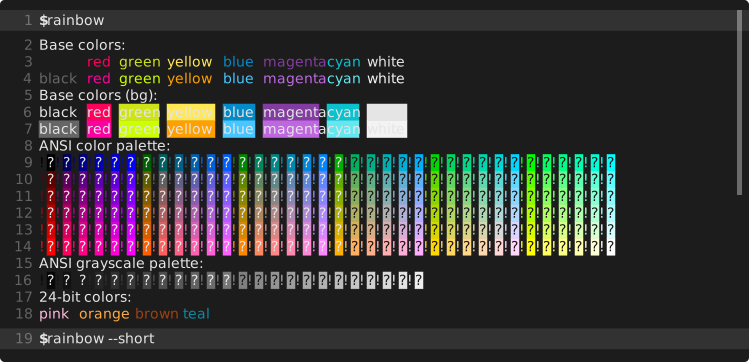
term-transcript exec --pure-svg --scroll --palette gjm8 \
  --line-numbers continuous \
  --scroll-interval 2s --scroll-len 2em \
  rainbow 'rainbow --short'
Numbering with line breaks
As the example below shows, what is numbered by default are displayed lines obtained after potential line breaking.

Generating command:
term-transcript exec --palette gjm8 \
  --line-numbers \
  --line-height 18px \
  'rainbow --long-lines'
This behavior can be changed with the --continued-mark arg. If set, the mark will be output before each line
continuation instead of the line number. Similarly, --hard-wrap-mark changes the mark placed at the end of wrapped
lines.
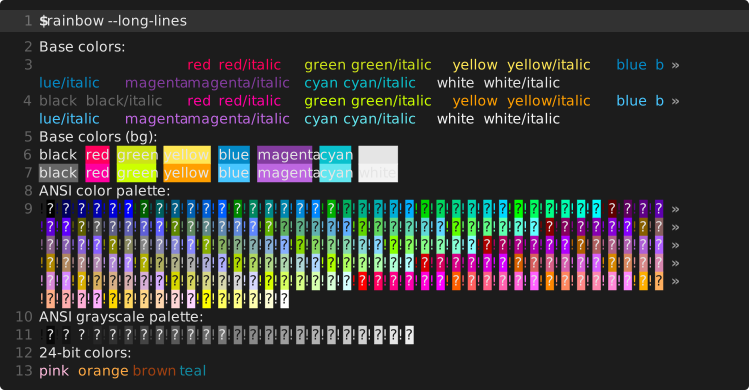
term-transcript exec --pure-svg --palette gjm8 \
  --line-numbers \
  --continued-mark '' \
  --line-height 18px \
  --advance-width 7.8px \
  'rainbow --long-lines'

term-transcript exec --palette gjm8 \
  --line-numbers \
  --continued-mark '…' \
  --hard-wrap-mark '—' \
  'rainbow --long-lines'
Custom Fonts
Using --styles and --font options, it’s possible to use a custom font in the snapshot.
For example, the snapshot below uses Fira Mono:

Note that the custom font will only be displayed when viewed in the browser if the Content Security Policy of the HTTP server hosting the SVG allows to do so. See the FAQ for more details.
Generating command:
term-transcript exec --palette gjm8 --window \
  --font 'Fira Mono, Consolas, Liberation Mono, Menlo' \
  --styles '@import url(https://code.cdn.mozilla.net/fonts/fira.css);' rainbow
The same snapshot rendered with pure SVG:
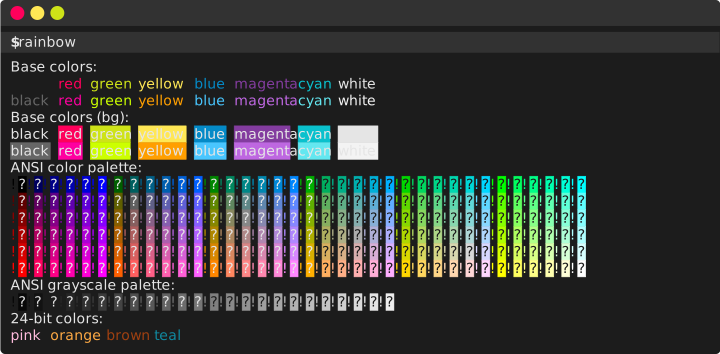
term-transcript exec --pure-svg --palette gjm8 --window \
  --font 'Fira Mono, Consolas, Liberation Mono, Menlo' \
  --styles '@import url(https://code.cdn.mozilla.net/fonts/fira.css);' rainbow
Embedding custom fonts
Using --embed-font, it’s possible to embed a font into the snapshot (rather than hot-linking it
as with --font). The font is subset before embedding, meaning that only glyphs for chars
used in the transcripts are retained; this means that the font overhead is not that significant (order of 10 kB).
For example, the snapshot below embeds Roboto Mono:

Generating command:
term-transcript exec --palette gjm8 \
  --line-numbers continuous \
  --embed-font=fonts/RobotoMono.ttf \
  'rainbow --short'
The embedded Roboto Mono font is variable by font weight, meaning that it has the bold version
(weight: 700) embedded as well. In contrast, the italic font face must be synthesized by the browser.
It is possible to embed the italic font face as well by specifying 2 paths for --embed-font:
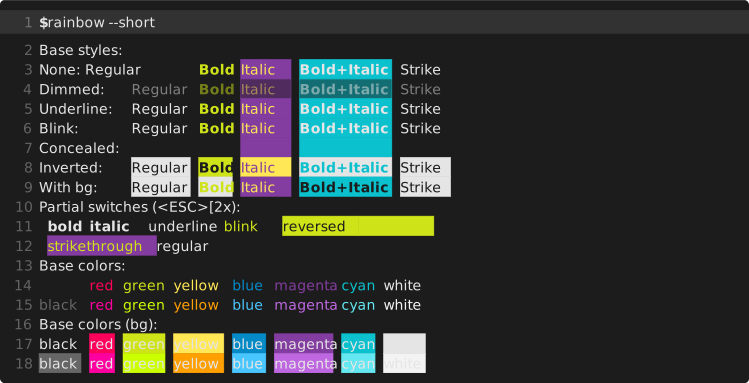
term-transcript exec --palette gjm8 \
  --line-numbers continuous \
  --line-height=1.4em \
  --dim-opacity 0.5 \
  --blink-opacity 0 --blink-interval 500ms \
  --embed-font="fonts/RobotoMono.ttf:fonts/RobotoMono-Italic.ttf" \
  --pure-svg \
  'rainbow --short'
Another example: Fira Mono, which is a non-variable font. We embed its regular and bold faces (i.e., italic is synthesized):
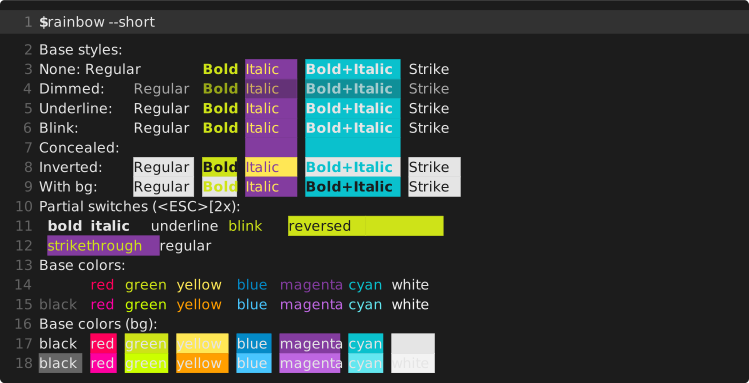
term-transcript exec --palette gjm8 \
  --line-numbers continuous \
  --embed-font="fonts/FiraMono-Regular.ttf:fonts/FiraMono-Bold.ttf" \
  --advance-width=8.6px \
  --pure-svg \
  'rainbow --short'
The same note regarding content security policy applies.
Controlling Inputs
--no-inputs flag allows hiding user inputs in the generated snapshots.
Hiding all inputs

Generating command:
term-transcript exec --scroll --palette xterm \
  --no-inputs --line-numbers continuous \
  rainbow 'rainbow --short'
Same snapshot generated using the pure SVG template (i.e., with the additional
--pure-svg flag):
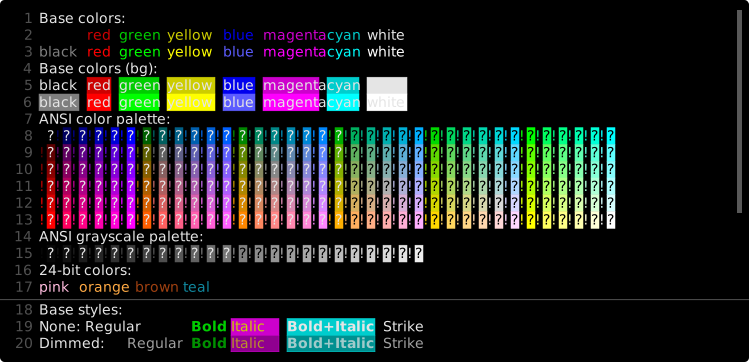
term-transcript exec --pure-svg --scroll --palette xterm \
  --no-inputs --line-numbers continuous \
  rainbow 'rainbow --short'
Failed Inputs
Some shells may allow detecting whether an input resulted in a failure
(e.g., *nix shells allow doing this by comparing the output of echo $? to 0,
while in PowerShell $? can be compared to True). Such failures are captured
and visually highlighted the default SVG template.
Failures in sh

Generating command:
term-transcript exec --palette gjm8 --window='sh Failures' --shell sh \
  'which non-existing-command > /dev/null' \
  '[ -x non-existing-file ]' \
  '[ -x non-existing-file ] || echo "File is not there!"'
Failures in bash
Captured using a pseudo-terminal, hence colorful grep output.

Generating command:
term-transcript exec --palette gjm8 \
  --pty --window='bash Failures' --shell bash \
  --init 'export PS1=' \
  --init 'export GREP_COLORS="mt=01;31:ln=:se="' \
  --init 'alias grep="grep --color=always"' \
  'grep -n orange config.toml' \
  'grep -m 5 -n blue config.toml'
Setting GREP_COLORS on Linux emulates grep coloring on macOS / *BSD (only supports coloring matched text,
not line numbers and separators).
Failures in pwsh

term-transcript exec --window --palette gjm8 \
  --shell pwsh './non-existing-command'
Custom Template and Config
term-transcript allows overwriting the Handlebars template, or to collect all config options
into a single TOML file.
Custom template
The --tpl option allows to configure a custom Handlebars template
rather than the standard ones. As an example, it’s possible to render a transcript into HTML.
term-transcript exec --tpl custom.html.handlebars \
  -o rainbow.html rainbow 'rainbow --short'
Used Handlebars template (click to expand)
{{!
  Example of a custom Handlebars template for use with `term-transcript`.
  This template renders an HTML document with collapsible interaction sections.
}}
{{! CSS definitions: colors. }}
{{~#*inline "styles_colors"}}
:root {
  {{~#each palette.colors}}

  --{{@key}}: {{this}}; --i-{{@key}}: {{lookup ../palette.intense_colors @key}};
  {{~/each}}

  --hl-black: rgba(255, 255, 255, 0.1);
}
.fg0 { color: var(--black); } .bg0 { background: var(--black); }
.fg1 { color: var(--red); } .bg1 { background: var(--red); }
.fg2 { color: var(--green); } .bg2 { background: var(--green); }
.fg3 { color: var(--yellow); } .bg3 { background: var(--yellow); }
.fg4 { color: var(--blue); } .bg4 { background: var(--blue); }
.fg5 { color: var(--magenta); } .bg5 { background: var(--magenta); }
.fg6 { color: var(--cyan); } .bg6 { background: var(--cyan); }
.fg7 { color: var(--white); } .bg7 { background: var(--white); }
.fg8 { color: var(--i-black); } .bg8 { background: var(--i-black); }
.fg9 { color: var(--i-red); } .bg9 { background: var(--i-red); }
.fg10 { color: var(--i-green); } .bg10 { background: var(--i-green); }
.fg11 { color: var(--i-yellow); } .bg11 { background: var(--i-yellow); }
.fg12 { color: var(--i-blue); } .bg12 { background: var(--i-blue); }
.fg13 { color: var(--i-magenta); } .bg13 { background: var(--i-magenta); }
.fg14 { color: var(--i-cyan); } .bg14 { background: var(--i-cyan); }
.fg15 { color: var(--i-white); } .bg15 { background: var(--i-white); }
{{/inline~}}

{{! CSS definitions }}
{{~#*inline "styles"}}
    <style>
    {{>styles_colors}}
    .bold,.prompt { font-weight: bold; }
    .italic { font-style: italic; }
    .underline { text-decoration: underline; }
    .strike { text-decoration: line-through; }
    .underline.strike { text-decoration: underline line-through; }
    .dimmed > span { opacity: 0.5; }
    @keyframes blink {
      0% { opacity: 1; }
      100% { opacity: 0.5; }
    }
    .blink > span { animation: 1s steps(2, jump-none) 0s infinite blink; }
    .concealed { color: transparent !important; }
    .term-wrapper {
      color: var(--white);
      background-color: var(--black);
    }
    .term-output {
      line-height: 1.25;
    }
    .content {
      max-width: {{add width 100}}px;
      margin: 0 auto;
      padding: .75rem;
    }
    main {
      max-width: {{add width 40}}px;
      margin: 0 auto;
      padding: .75rem;
    }
    main .accordion-button {
      margin: 0 -.75rem;
      padding: .75rem;
      width: calc(100% + 1.5rem);
      border-radius: 0 !important;
    }
    .white-space-pre {
      white-space: pre;
    }
    </style>
{{/inline~}}

{{~#*inline "main"~}}
<!DOCTYPE html>
<html lang="en">
  <head>
    <meta charset="utf-8">
    <meta name="language" content="en">
    <meta name="viewport" content="width=device-width,initial-scale=1,shrink-to-fit=no">

    {{~>styles}}
    <link href="https://cdn.jsdelivr.net/npm/bootstrap@5.1.3/dist/css/bootstrap.min.css" rel="stylesheet" integrity="sha384-1BmE4kWBq78iYhFldvKuhfTAU6auU8tT94WrHftjDbrCEXSU1oBoqyl2QvZ6jIW3" crossorigin="anonymous">
    <title>Terminal transcript</title>
  </head>
  <body>
    <header>
      <div class="content">
        <h1 class="display-3 mb-4 text-center">Terminal Transcript</h1>
        <p class="lead">This example demonstrates using <code>term-transcript</code> with a custom template.</p>
        <p>Templating allows changing the output format completely; in this case, it is changed to HTML instead of default SVG. The template source and docs can be found in the <a href="{{creator.repo}}">project repository</a>.</p>
      </div>
    </header>
    <main class="term-wrapper rounded">
      <div class="accordion accordion-flush">
      {{~#each interactions}}
        <div class="accordion-item bg-transparent{{#if (not @last)}} mb-2{{/if}}">
          <h2 class="accordion-header" id="user-input-{{@index}}">
            <button class="accordion-button" type="button" data-bs-toggle="collapse" data-bs-target="#term-output-{{@index}}" aria-expanded="true" aria-controls="term-output-{{@index}}">
              <span class="font-monospace small white-space-pre">{{input.text}}</span>
            </button>
          </h2>
          <div id="term-output-{{@index}}" class="accordion-collapse collapse show" aria-labelledby="user-input-{{@index}}">
            <div class="accordion-body p-0 pt-2">
              <pre class="term-output mb-0">
              {{~#each output as |line|~}}
                {{~#each line.spans as |span|~}}
                  {{! Invoke the `html_span` helper used by the default template. }}
                  {{~>html_span span~}}
                {{~else~}}{{! The line may be empty }}
                {{~/each}}
                {{! Add a newline in order to make the text correctly copyable }}

              {{/each~}}
              </pre>
            </div>
          </div>
        </div>
      {{~/each}}
      </div>
    </main>
    <footer class="my-4 text-center">
      <p><em class="small text-muted">Created with <a href="{{creator.repo}}">{{creator.name}} v{{creator.version}}</a></em></p>
    </footer>
    <script src="https://cdn.jsdelivr.net/npm/bootstrap@5.1.3/dist/js/bootstrap.min.js" integrity="sha384-QJHtvGhmr9XOIpI6YVutG+2QOK9T+ZnN4kzFN1RtK3zEFEIsxhlmWl5/YESvpZ13" crossorigin="anonymous"></script>
  </body>
</html>
{{/inline~}}

{{! Import the main template which will automatically pick up the `main` partial defined above. }}
{{~>_common~}}
Configuration file
--config-path option allows reading rendering options from a TOML file. This enables
configuring low-level template details. The snapshot below uses a configuration file
to customize palette colors and scroll animation step / interval.

Configuration file (click to expand)
# Custom template configuration.
line_height = 1.3
width = 900
window = { title = 'Custom Configuration Example' }
line_numbers = { scope = 'continuous', continued.mark = '…' }
dim_opacity = 0.5
wrap.hard_break_at = { chars = 100, mark = '—' }
scroll = { max_height = 300, pixels_per_scroll = 18, interval = 1.5 }

[palette.colors]
black = '#3c3836'
red = '#b85651'
green = '#8f9a52'
yellow = '#c18f41'
blue = '#68948a'
magenta = '#ab6c7d'
cyan = '#72966c'
white = '#a89984'

[palette.intense_colors]
black = '#5a524c'
red = '#b85651'
green = '#a9b665'
yellow = '#d8a657'
blue = '#7daea3'
magenta = '#d3869b'
cyan = '#89b482'
white = '#ddc7a1'
Generating command:
term-transcript exec --config-path config.toml \
  'rainbow --long-lines'
Frequently Asked Questions
This file provides some tips and troubleshooting advice for term-transcript
in the FAQ format.
Which template to use?
The term-transcript library and the CLI app come with two main ways to render transcripts
into SVG.
HTML embedding
Text can be embedded into SVG as an HTML fragment (i.e., using a <foreignObject>).
This is motivated by the fact that SVG isn’t good at text layout,
particularly for multiline text and/or text with background coloring.
HTML, on the other hand, can lay out such text effortlessly. Thus, term-transcript
avoids the need of layout logic by embedding pieces of HTML (essentially, <pre>-formatted <span>s)
into the generated SVGs.
HTML embedding is the default approach of the CLI app; it corresponds to the new() constructor in Template.
It can lead to issues with viewing the rendered SVG as described below.
Pure SVG
As the second option, pure SVG can be generated with manual text layout logic. As a consequence, unless font embedding is used, the layout logic uses a hard-coded font advance width (aka char width), which may lead to various artifacts (e.g., interrupted underlines, stretched / compressed text etc.). This is required to align background color boxes with the text.
Pure SVG is generated by the CLI app if the --pure-svg flag is set.
In the library, it corresponds to the pure_svg() constructor in Template.
HTML embedding not supported error
(Applies to the default template only; consider using the pure SVG template.)
If the generated SVG file contains a single red line of text “HTML embedding not supported…”, it means that you view it using a program that does not support HTML embedding for SVG. That is, the real transcript is still there, it is just not rendered properly by a particular viewer. All modern web browsers support HTML embedding (since they support HTML rendering anyway), but some other SVG viewers, such as Inkscape, don’t.
Transcripts & Content Security Policy
A potential reason for rendering errors when the transcript SVG is viewed from a browser
is Content Security Policy (CSP) set by the HTTP server.
If this is the case, the developer console will contain
an error mentioning the policy, e.g. “Refused to apply inline style because it violates
the following Content Security Policy…”. To properly render a transcript, the CSP should contain
the style-src 'unsafe-inline' permission.
As an example, GitHub does not provide sufficient CSP permissions for the files attached to issues,
comments, etc. On the other hand, committed files are served with adequate permissions;
they can be linked to using a URL like https://github.com/$user/$repo/raw/HEAD/path/to/snapshot.svg?sanitize=true.
Customizing fonts
It is possible to customize the font used in the transcript using font_family and additional_styles
fields in TemplateOptions (when using the Rust library), or --font / --styles arguments
(when using the CLI app).
For example, the Fira Mono font family can be included by setting additional styles to the following value:
@import url('https://code.cdn.mozilla.net/fonts/fira.css');
It is possible to include @font-faces directly instead, which can theoretically
be used to embed the font family via data URLs:
@font-face {
  font-family: 'Fira Mono';
  src: local('Fira Mono'), url('data:font/woff;base64,...') format('woff');
  /* base64-encoded WOFF font snipped above */
  font-weight: 400;
  font-style: normal;
}
Such embedding, however, typically leads to a huge file size overhead (hundreds of kilobytes)
unless the fonts are subsetted beforehand (minimized to contain only glyphs necessary
to render the transcript). Which is exactly the functionality provided by the FontEmbedder interface
and its FontSubsetter implementation (the latter via the font-subset feature). If using CLI,
you can embed fonts with the --embed-font flag.
Beware that if a font is included from an external source and the including SVG is hosted on a website, it may be subject to CSP restrictions as described above.